The member portal
The member portal is a self-service site for your members at
/portal on your Collector address. It's optional and additive — nothing
in the admin console depends on members using it — but it's the easiest way
to collect: members see exactly what they owe and can pay it on their phone.
What members can do
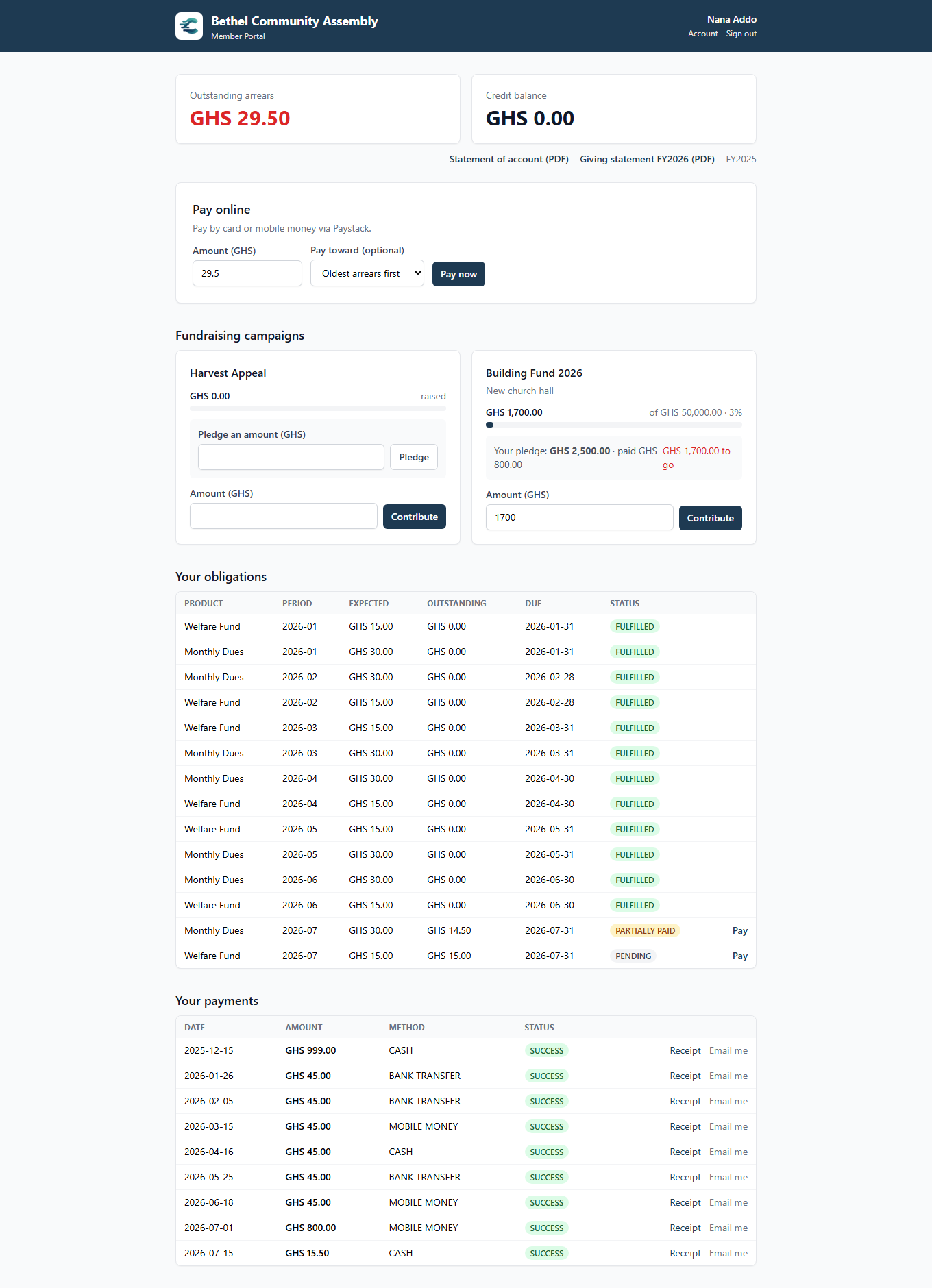
- See their balance — outstanding arrears, front and center.
- View their statement — obligations by period and product, with what's paid and what's pending.
- Download their statement of account — a PDF with every charge and payment, receipt numbers, and a running account ledger. Admins can generate the same statement for any member from the member's page.
- Download a giving statement — a per-fiscal-year PDF of everything they gave, totalled by product — the classic annual contribution statement.
- See their payment history — every payment, regardless of whether they paid online or a treasurer recorded it as cash, with one-click receipt download or re-send to email.
- Pay online — by card or mobile money (MTN MoMo, Telecel Cash, AirtelTigo Money, Visa, Mastercard) via Paystack. Either an amount of their choosing, or a one-tap Pay on a specific obligation.
- See fundraising campaigns — running campaigns, their own pledge status, a contribute button, and self-service pledging on campaigns they haven't pledged to yet.
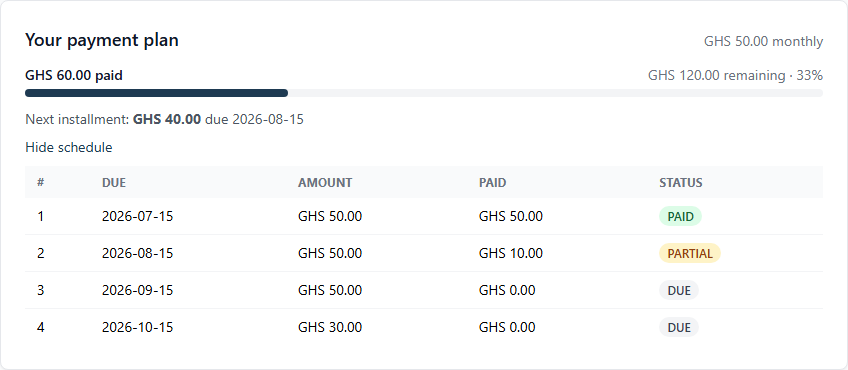
- Follow their payment plan — members on an active payment plan see its progress, the next installment, and the full schedule.
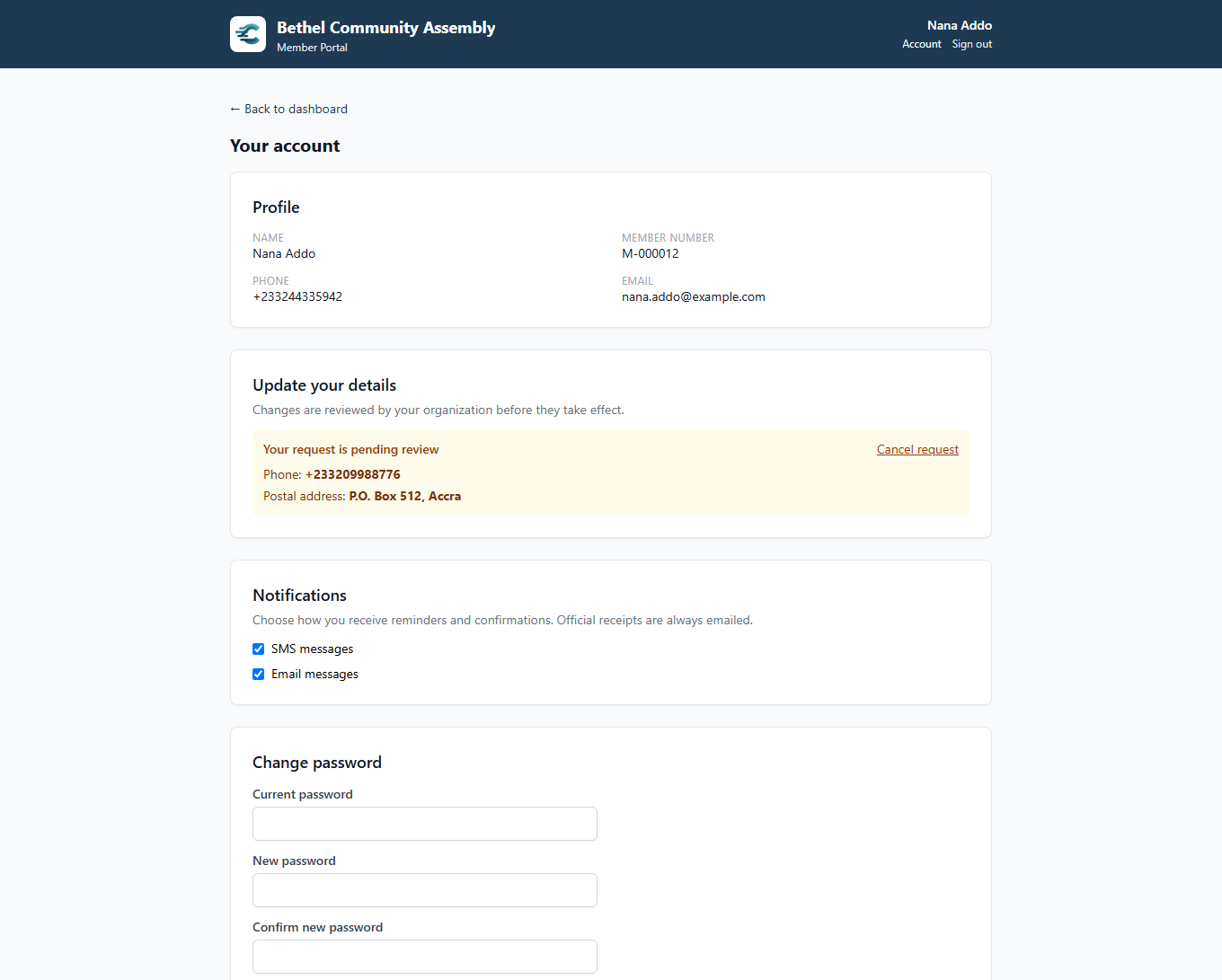
- Manage their account — change their password, set notification preferences (SMS/email opt-outs), and request profile updates that staff review before they take effect.
A member on an active payment plan also sees their plan card:
Granting portal access
Portal access is granted per member from the admin console: open the member's page and click Portal access. Enable access and set an initial password to share with the member — they can change it themselves once signed in.
Member sign-in
Members sign in at /portal/login with their member number, phone, or
email and their password.
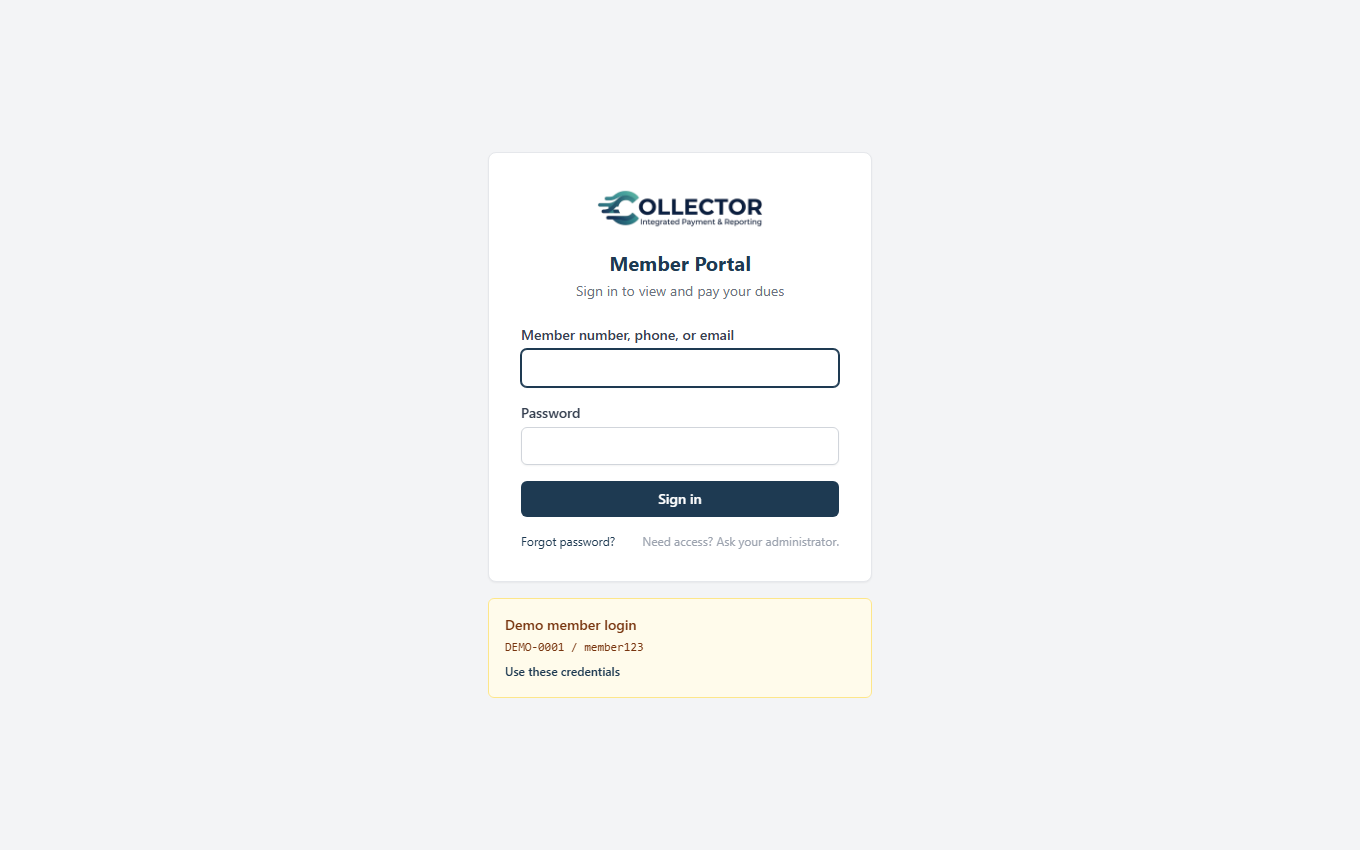
There's a forgot password flow — members receive a reset link by email, so make sure SMTP is configured in Settings before inviting members.
Members can sign in with any identifier, but the self-service reset link is sent by email. A member without an email address will need an admin to set a new password from the Portal access dialog.
The account page
From the header, members can open Account to:
- see the profile details the organization has on file;
- request an update to their contact details — the request is held for staff review (see below) so the register stays authoritative;
- choose notification preferences — opt out of SMS or email reminders (official receipts are always emailed);
- change their password.
Reviewing profile update requests
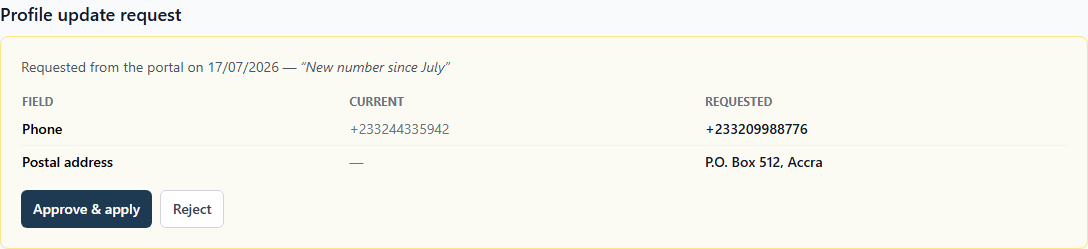
When a member requests a change, staff see it in two places: a banner on the Members page listing everyone with a pending request, and a review panel on the member's own page showing each field current → requested, side-by-side. Approve & apply writes the change to the register (and the audit log); Reject returns it with a note the member sees in their portal.
How online payment works
- The member signs in and taps Pay now.
- They choose the amount and are handed to Paystack's secure checkout — card or mobile money.
- After the charge, Collector verifies the payment directly with Paystack on the server before counting it. The browser is never trusted.
- The verified payment is allocated to the member's obligations oldest-first — exactly like a cash payment — a numbered receipt is emailed, and the statement updates immediately.
If the member closes the browser mid-payment, or Paystack's webhook and the member's return race each other, no harm done: confirmation is idempotent and a payment can never count twice.
Checkouts that are started but never completed don't linger either: a nightly sweep re-verifies every stale pending payment with Paystack — confirming (and allocating) any that actually went through but whose confirmation was lost — and expires the rest, so the member's dashboard never shows a stuck "awaiting confirmation" notice for a payment that isn't coming.
Enabling the portal's online payments
Online payment requires Paystack keys under Settings → Online Payments (Paystack):
- Enter your Paystack secret and public keys.
- In your Paystack dashboard, set the webhook URL to
https://<your-collector-address>/api/v1/portal/paystack/webhook.
Paystack's transaction fees are usage-based and paid to Paystack. Collector never takes a percentage of your collections.