Managing members
Members are the heart of Collector — everything else (obligations, payments, reports) is organized around them.
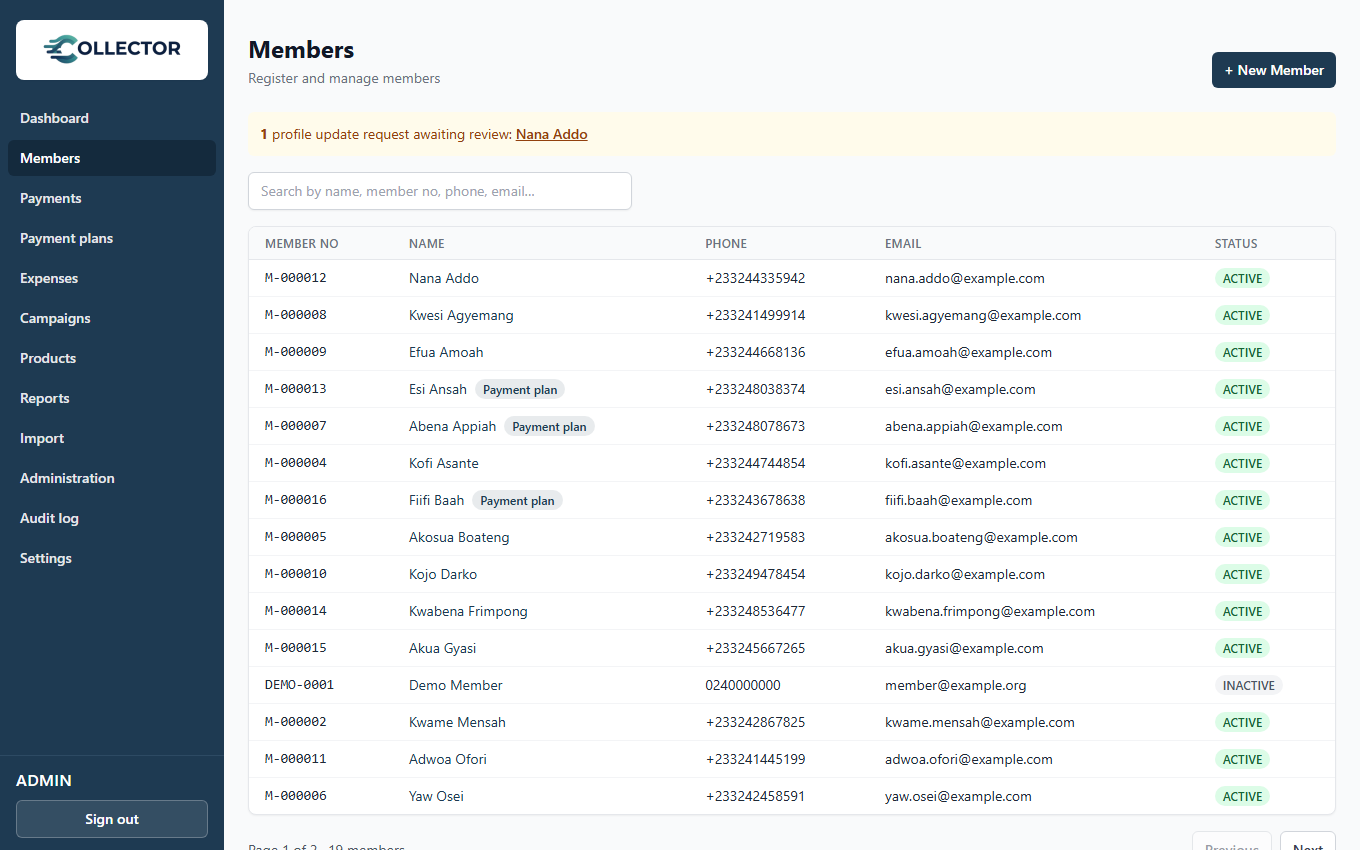
Registering a member
Go to Members → New member and fill in:
- Names — first name, last name, and any other names.
- Phone — used for SMS reminders and confirmations.
- Email — used for receipts, reminders, and portal access.
- Date joined and any demographic details your organization tracks.
Phone and email are each optional, but a member with neither can't receive receipts, reminders, or portal invitations — so capture at least one whenever you can.
What happens automatically on registration
- The member gets a member number.
- They're enrolled in every auto-enroll product.
- The current period's obligations are generated for each mandatory product they're enrolled in — a member who joins mid-June owes June, not just July onward.
- If the registration fee is enabled in Settings, a one-time registration-fee obligation is generated at the fee amount in force on the day they register (later fee changes don't affect them).
- If the registration welcome notification is enabled, they receive a welcome SMS/email.
The member page
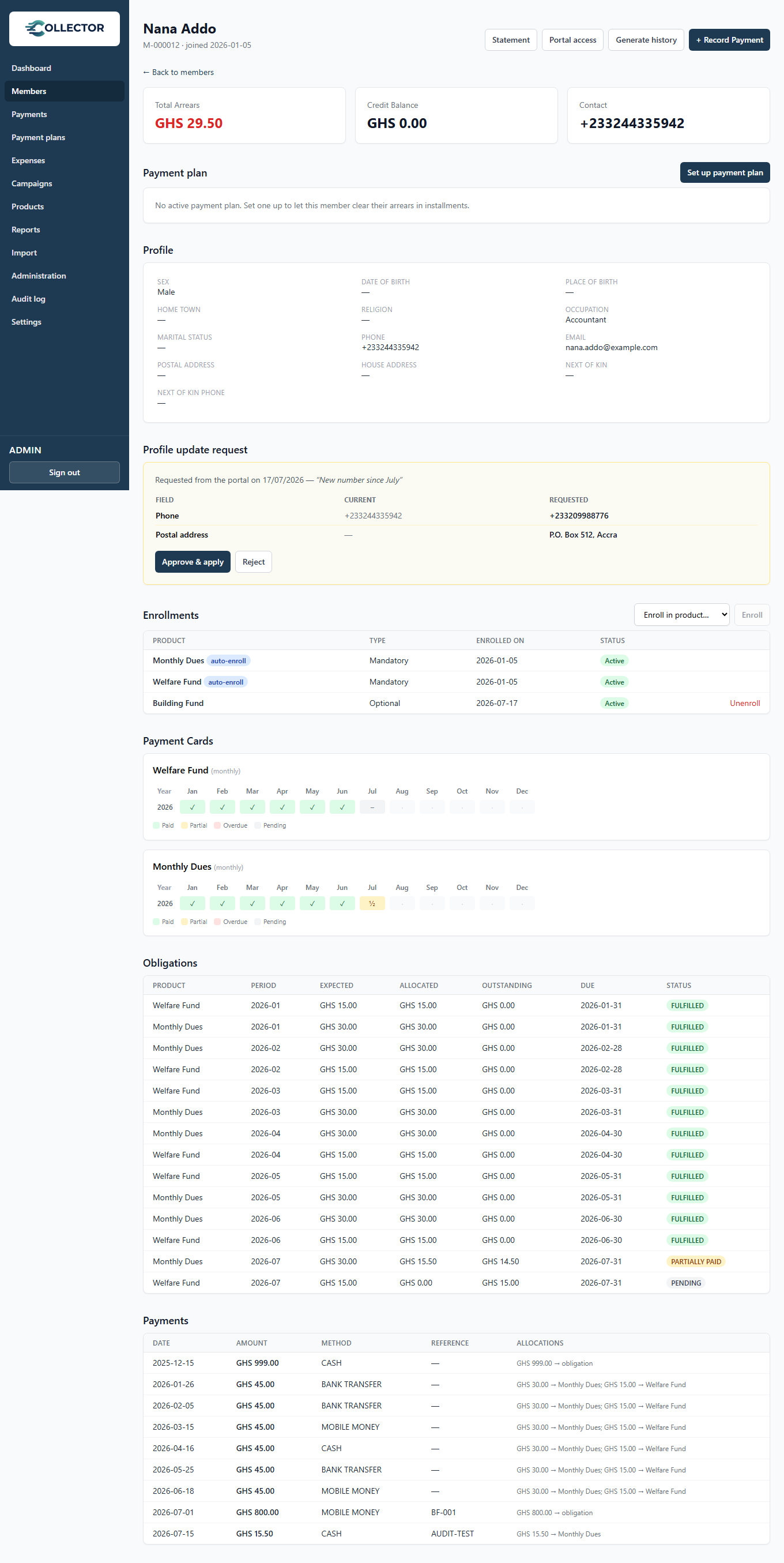
Open any member from the list to see their full picture:
- Profile — contact details and status.
- Enrollments — which products they participate in.
- Obligations — what they owe and its status (pending, partially paid, fulfilled, overdue).
- Payments — everything they've paid, with receipts.
- Statement of account — the running record of expected vs. paid.
This is also where you record a payment for a specific member, enroll them in a product, or edit their details.
Member status
- Active — participates normally: obligations are generated each period.
- Inactive — for members who have left or lapsed. Use this instead of deleting, so their payment history stays intact for your records.
Enrolling members in products
- Auto-enroll products handle themselves — every member is in.
- For other products, use the Enrollments section on the member's page: pick the product and click Enroll. The member immediately receives the current period's obligation for that product.
- Unenrolling stops future obligations; it doesn't erase what was already owed. A member can be re-enrolled at any time.

Bringing in existing members
Don't type your whole register by hand — import members (and their payment history) from CSV or Excel. See Importing data.