Reports
Collector turns your payment records into finance-grade reports your committee can act on — built on demand from the Reports page, or generated automatically on a schedule and emailed to admins.
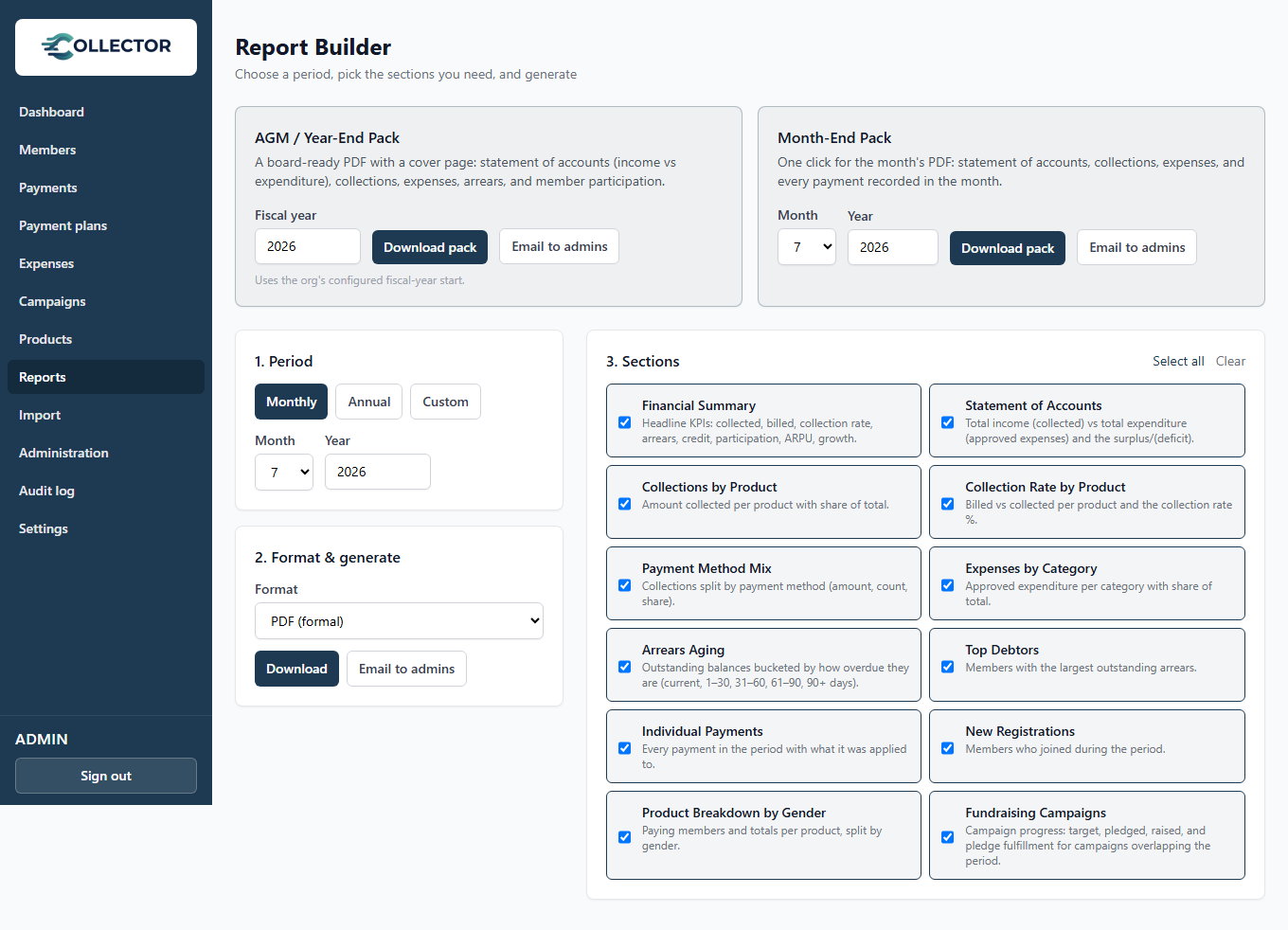
One-click packs
At the top of the Reports page sit two one-click packs — formal, board-ready PDFs with a cover page, curated for the moment they're used:
- AGM / Year-End Pack — pick the fiscal year and download. Leads with the statement of accounts (total income vs total expenditure and the surplus/deficit), then collections, expenses by category, arrears aging, top debtors, participation, and campaigns. The cover page carries signature lines for the chairperson, treasurer, and secretary.
- Month-End Pack — the month's statement of accounts, collections, expenses, and every payment recorded in the month.
Both can be downloaded or emailed to all admins in one click.
The Month-End Pack is included on every plan. The AGM / Year-End Pack, preset reports, and the report builder are available on Growth and above; custom sections and date ranges require Pro.
Building a report
The Reports page walks you through three steps:
- Period — choose the month or the fiscal year to cover. Annual reports respect your configured fiscal year start (Settings), so a September– August church year reports as one year.
- Format & generate — pick PDF (the formal, presentable report), Excel, or CSV (the raw data for further analysis).
- Sections — choose what the report includes.
What the reports contain
Monthly report
- Consolidated view: who paid, and for which product, in the month.
- The individual payment entries for the month.
Annual report
- Total payments per product across the fiscal year, with breakdowns.
Analytical sections (availability depends on your plan)
- Statement of accounts — total income (collected) vs total expenditure (approved expenses) and the resulting surplus/(deficit).
- Expenses by category — approved expenditure per category with share of total.
- Collection rate — expected vs. collected, per product.
- Arrears aging — how old outstanding arrears are.
- Participation — how many enrolled members actually paid.
- ARPU — average revenue per member.
- Month-on-month growth — the collection trend.
- Fundraising campaigns — target, pledged, raised, and pledge fulfillment for every campaign overlapping the period.
Delivery
Generated reports are emailed to admins rather than stored on the server — your report archive lives safely in your inbox, and the server keeps lean. Make sure SMTP is configured in Settings.
Automated monthly reports
On the Growth plan and above, the monthly report is generated and emailed to all admins automatically at the start of each month — no one has to remember, and there is nothing to configure beyond working SMTP settings.
With automated reports plus automatic reminders, a typical month needs no manual bookkeeping at all: payments are recorded as they happen, arrears are chased by SMS, and the report is in the committee's inbox on the 1st.
The dashboard
For day-to-day monitoring (rather than formal reporting), the Dashboard shows your key numbers live: amounts collected, arrears, member counts, and the 12-month collection trend.